If you want to capture a signature, mark up a plan or make a sketch on a rugged tablet, the datasheet throws three terms at you: capacitive pen, active pen and digitizer. They usually sit side by side with no explanation of how they differ. This article explains what a digitizer is, how passive and active pens work, what Wacom and Microsoft write about the technology, and which tablet in our range has which pen input according to its datasheet. How a touchscreen reacts in rain and with gloves is covered in the article Touch in wet conditions and with gloves. This one is about the pen.
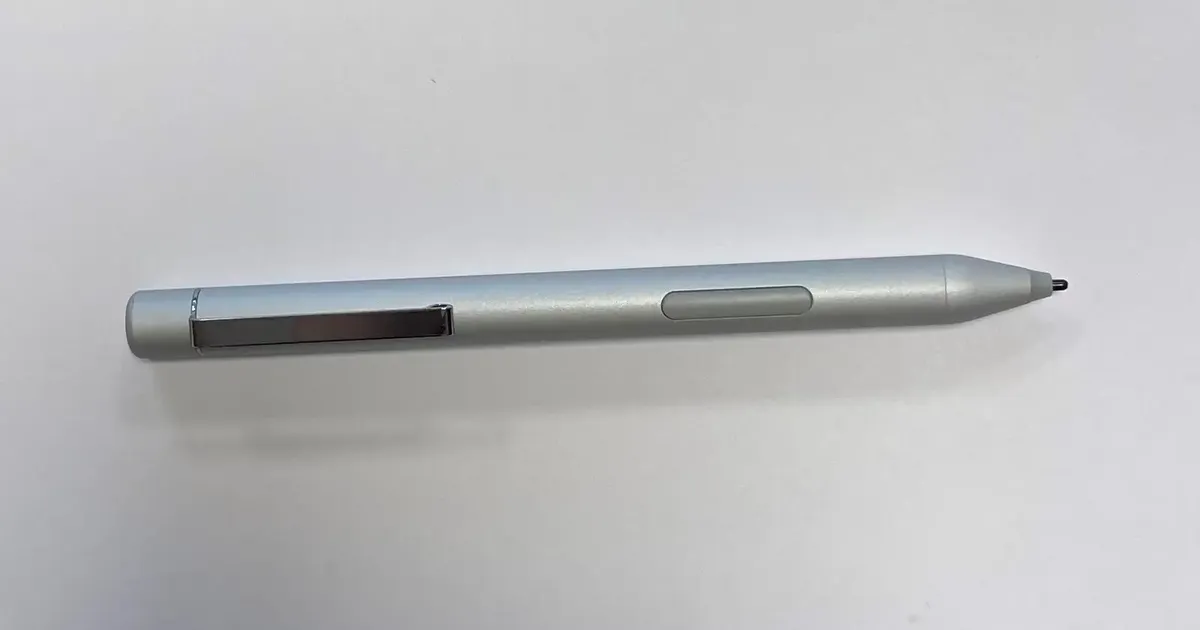
Image: digitizer pen of the Fieldbook P101, RobustBook product photo
What a digitizer is
A digitizer detects the position of a pen on the display and passes it to the operating system as coordinates. In its guides for device makers, Microsoft separates the pen digitizer in the device from the pen itself, which it calls a transducer. So the digitizer is electronics inside the tablet. The pen is the second part, and the two have to match.
Datasheets spell the word in several ways. For the UX10, Getac lists a "dual mode (multitouch + digitizer)", for the ZX80 a "dual-mode touchscreen (touch and digitizer)" and for the T800 a "dual-mode touchscreen (multi-touch and graphics tablet)". All three wordings describe an option: next to finger detection, a digitizer works for the pen. If you do not order it, these models come with the capacitive touchscreen and no digitizer.
Passive pen: a finer tip on the normal touchscreen
A passive pen has no electronics of its own. For the ET51, Zebra lists a capacitive touchscreen that works with a finger, a glove and a passive stylus, and for the ET60 a conductive stylus sold separately. These Zebra pages give no figures for pressure levels or tilt for the pens.
In our range, this pen type appears in several datasheets. The RuggON PX501 G5 and the RuggON SOL 7 list a 2-mm hard-tip pen and palm rejection on the capacitive multitouch. The Getac K120 EX names a hard-tip stylus, and the Getac K120 operation with a pen. For the Durabook R8, the R10, the R11 and the R11L, the configurator on the product page lists a "replacement stylus and tether for capacitive touch". When you write, your hand rests on the glass. Our datasheets mention palm rejection only for RuggON.
Active pen: two methods and a protocol question
An active pen works together with the digitizer in the device, not only with the touch controller. There are several methods, and Wacom describes two of them. With EMR (electro-magnetic resonance), a sensor sits under the display. It generates an electromagnetic field from which the pen draws its energy, which is why Wacom calls the pen cordless and battery-free. Active ES (AES) works differently: the pen uses the same sensor and the same controller as finger input, so no separate pen sensor is needed.
Microsoft adds the Microsoft Pen Protocol (MPP). According to Microsoft's support page, a Surface pen may work with devices that support MPP. The MPP version of the device should match that of the pen, and the experience varies slightly between device makers. In a guide for manufacturers, Microsoft names MPP 2.6 and AES 2.1 as examples of specifications that define how pen and digitizer exchange data.
For purchasing, this means an active pen fits the protocol that the digitizer in the tablet speaks. For the Windows tablet ET60W/ET65W, Zebra lists a passive pen in the box and compatibility with MPP 2.0 pens. Our datasheets only say "digitizer" or "digitizer pen" and name no protocol. Ask about it before you plan on pens from a shop.
Dual mode: finger, glove and pen on the same screen
Getac offers the digitizer option on several tablets. The datasheets of the UX10, the ZX80 and the T800 list it as an option. On the UX10 EX, the F110 EX and the ZX80 EX, the dual mode appears without the word "optional".
The datasheets list glove and rain operation as a separate property, not as part of the digitizer. The Getac F110 G7 names operation in rain or with gloves but no digitizer. On the F110 EX, digitizer and glove operation sit side by side. If you work with gloves and also need signatures, you therefore have to find both features in the datasheet. How glove operation works technically is explained in the article on touch in wet conditions and with gloves.
Which tablet has which pen input
The table gives the details from our datasheets in shortened form. "No information" means that the datasheet says nothing about it. This does not promise that an option can be supplied.
| Model | Touch according to datasheet | Pen according to datasheet |
|---|---|---|
| Getac UX10, 10.1 inches, IP66 | capacitive multi-touchscreen with LumiBond technology | optional dual mode (multitouch + digitizer) |
| Getac ZX80, 8 inches, IP67, Android 15.0 | capacitive | optional dual-mode touchscreen (touch and digitizer) |
| Getac K120, 12.5 inches, IP66 | capacitive multi-touchscreen, operable with gloves or in rain | operable with a pen, digitizer not named |
| RuggON PX501 G5, 10.1 inches, IP65 | capacitive multitouch, glove operation, water and palm rejection | 2-mm hard-tip pen, optional digitizer with IP54 pen |
| Fieldbook P122G2, 12.2 inches, IP65 | no information | digitizer pen with battery in the box |
| Durabook R8, 8.0 inches, IP66 | sunlight-readable touchscreen, 800 nits | input pen as an accessory, configurator with display option "digitizer" |
For the Durabook R8 and R10, the configurator on the product page lists a "digitizer" option in the display selection, and for the R10 also a "replacement digitizer pen" and a "replacement active pen". The datasheets of both tablets do not mention this, and for the R8 they name only an input pen as an accessory. Ask before you request a quote whether the digitizer option is part of your configuration.
The difference from Getac lies in the contents of the box. With Getac, the digitizer is an option on the display. For the Fieldbook P101 and the Fieldbook P122G2, the datasheet lists the digitizer pen in the box, with a battery on the P122G2. Our documents do not say which method these pens use.
Where a digitizer pays off and where it does not
A pen pays off where small fields have to be hit or lines drawn: signatures on delivery and handover in logistics, markings in plans, sketches at the vehicle. Whether a digitizer is needed for that depends on the software. The application has to process pen input as ink or as a signature. Check that before choosing the device, not after.
The limits are specific. No datasheet in our range names pressure levels or tilt detection, so there is no evidence for drawing work with graded pressure. A pen is a part that can get lost, and the pen of the P122G2 has its own battery that you add to your fleet planning. The row "pen" in the accessory table for tablets shows which tablet lists a pen as an accessory. These questions help before you order:
- Is the digitizer built into the display at the factory, or is it an option?
- Which pen protocol does it speak?
- Does the pen have a battery, and how is it charged?
- Is there a tether or a pen holder?
- Does my application process pen input?
Frequently asked questions
What is the difference between a capacitive pen and a digitizer pen?
A capacitive pen replaces the finger with a conductive tip and works on the normal touchscreen. A digitizer pen belongs to a digitizer in the device that detects the pen separately. On Getac tablets this digitizer is an option, and for the Fieldbook P122G2 the datasheet lists a digitizer pen with a battery in the box.
Does a pen from a shop work on my tablet?
That depends on the pen. Whether a passive pen responds is decided by the touchscreen. With an active pen, the protocol has to match the digitizer. Microsoft, for example, writes that the MPP version should match the pen. Clarify this with the manufacturer before buying pens in larger numbers.
Do I need a digitizer if I work with gloves?
No. The datasheets list glove operation as a separate property, for example for the Getac K120, the RuggON PX501 G5 and the Getac F110 G7. A digitizer is added when you need pen input.
Which of your tablets have a digitizer?
The datasheets of the Getac UX10, ZX80 and T800 list it as an option, and the UX10 EX, the F110 EX and the ZX80 EX list it as dual mode without that word. The RuggON PX501 G5 has it as an option with an IP54 pen. Fieldbook P101 and P122G2 come with a digitizer pen. For the Durabook R8 and R10, the configurator names a digitizer option.
Conclusion: who needs a digitizer and who does not
If you capture signatures and tick boxes, a passive pen on the capacitive touchscreen is enough, as offered by RuggON, the Getac K120 and the Durabook tablets. If you take freehand notes and make sketches in a pen application, you need a tablet with a digitizer: the Getac UX10 or ZX80 with the option, the Fieldbook P101 or P122G2 with the pen in the box, the RuggON PX501 G5 with the digitizer option. For drawing with graded pressure, our datasheets prove nothing. If you want to use third-party active pens, clarify the protocol first, because none of our datasheets names it.
The RobustBook team will name the configuration with the pen input that suits your application.